

How to remove AI-generated content from your Pinterest feed and reap maximum benefits as a content creator
A step-by-step guide

631 million people (which includes bloggers, content creators, and online writers) use Pinterest every single month to find inspiration in one way or another,
I am also a Pinterest creator and an online writer, and I know this for a fact:
Pinterest is one of the BEST places to find ideas, no matter which creative format you work in or which niche you operate in online.
But recently, with the rise of AI-generated content, I have started noticing something deeply frustrating in the home feeds of creators everywhere, including my own.
The feed that was once a goldmine of genuine human creativity is slowly getting flooded with AI-generated images.
And, I personally don’t want to see these images anymore.
I want my Pinterest feed to look exactly the way it used to.
Do you want Pinterest to work the same way for you?
Great!
Let me walk you through exactly how you and I can take back control of our Pinterest feeds in this step-by-step guide.
Step 1:
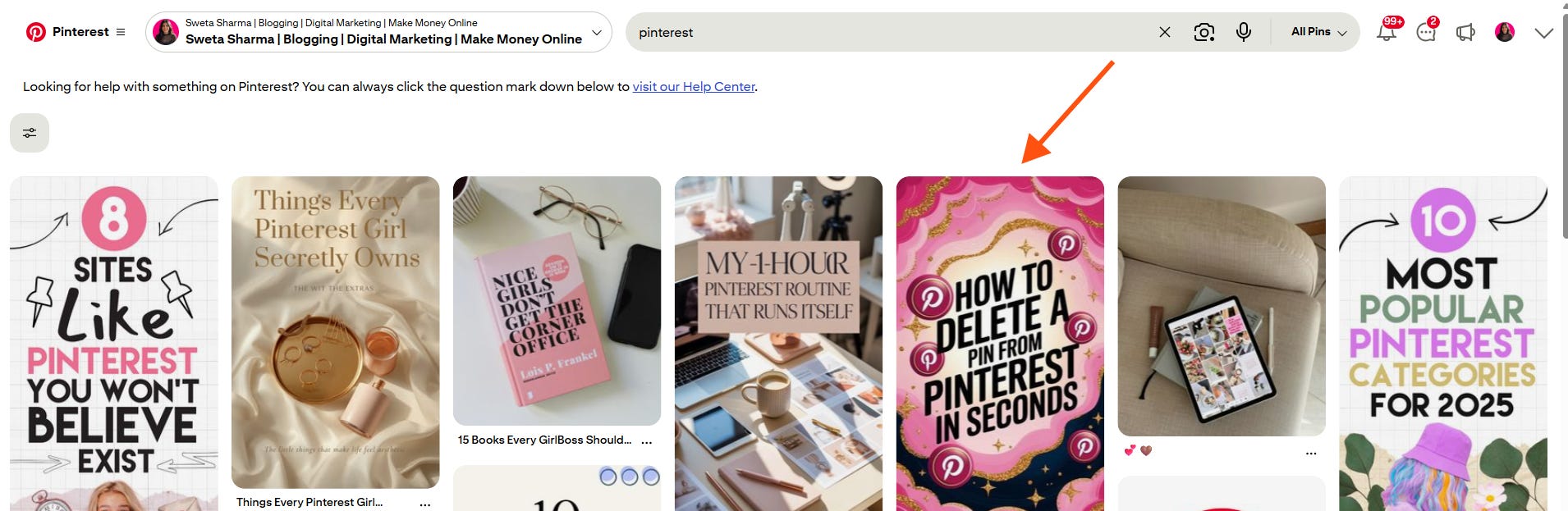
Go to your home feed and spot any AI-generated pin.
Step 2:
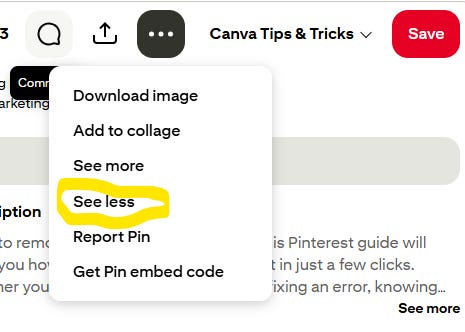
Click on that pin. It will open in a new window. From there, click on the three dots you see at the top. A dropdown will appear with options like Download image, Add to collage, See more, and a few others.
Among those options, you will see one labeled “See less”.
Click on it.
Step 3:
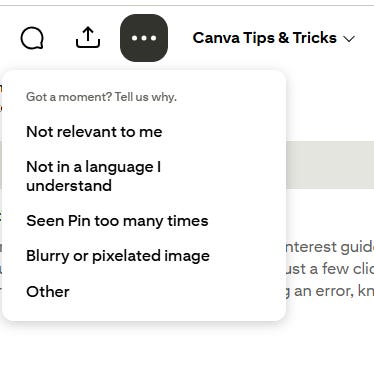
Tell Pinterest why you do not want to see the pin.
You can choose your reason from the options it gives you:
Not relevant to me
Not in a language I understand
Seen Pin too many times
Blurry or pixelated image
Other
Step 4:
Once you give Pinterest the reason, watch it do its thing!
It will immediately blur out that pin and show you a message that says “Got it! We won’t show you this Pin in the future.” You will also see a “Tune your feed” button at the bottom, which is worth exploring.
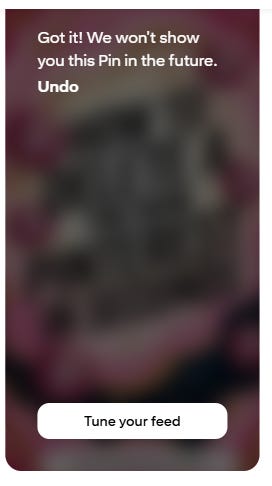
Note: Your feed will not transform overnight. Pinterest needs a little time to recalibrate and learn your preferences. The more consistently you do this, the faster your feed will clean itself up.
Wrapping up…
There ya go!
I hope this post has helped you in some way.
Follow the steps that I’ve shared with you and let me know what difference you notice in your Pinterest home feed.
If you want to learn more about using Pinterest as a creator, refer to these posts👇


This is Day 41 of my 100-day writing challenge.
I will see you tomorrow.
Until then:
Keep smiling, keep learning.
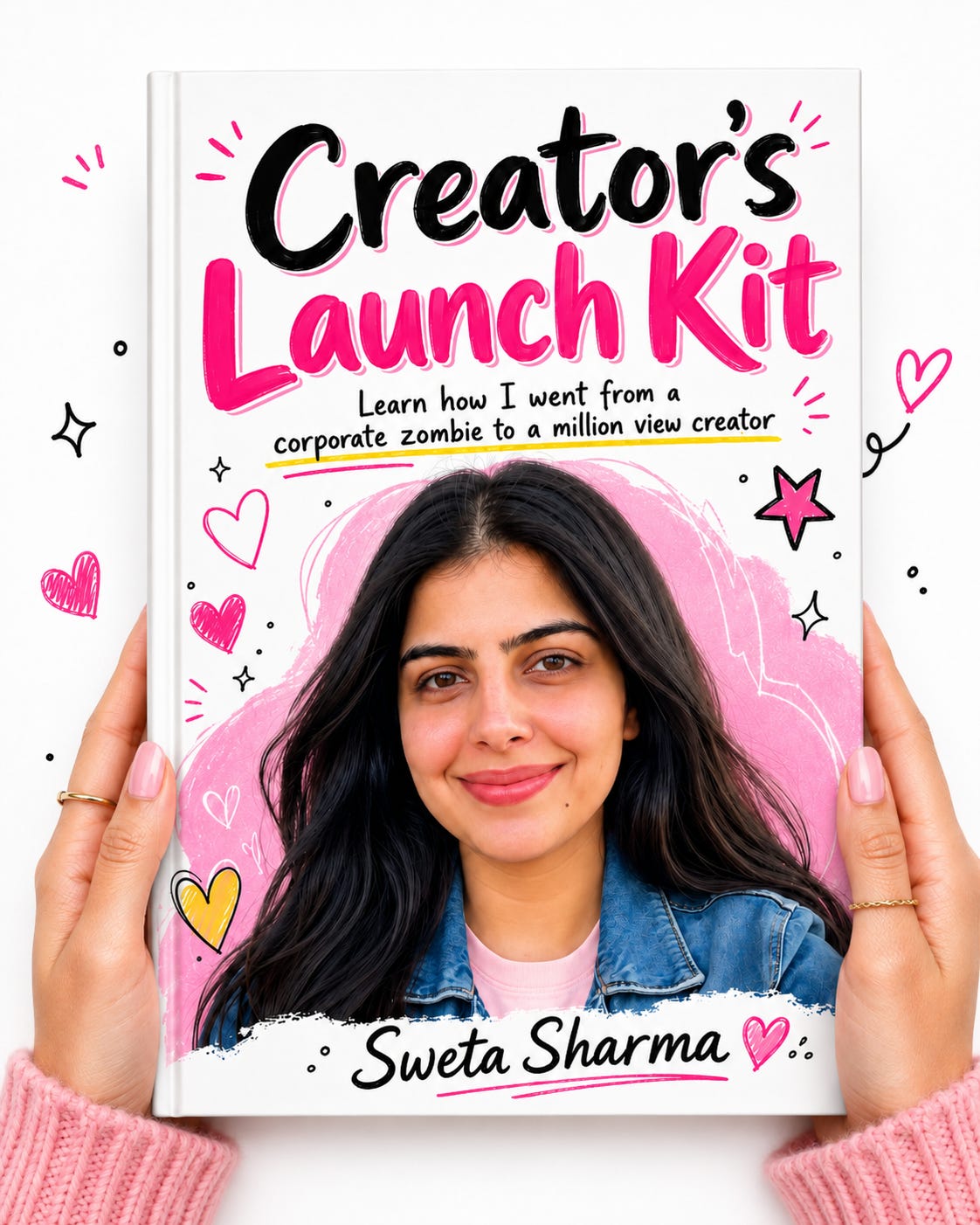
Grab your FREE Creator’s Launch Kit and get the exact system that helped me build my online brand while working 70+ hrs in a corporate job!
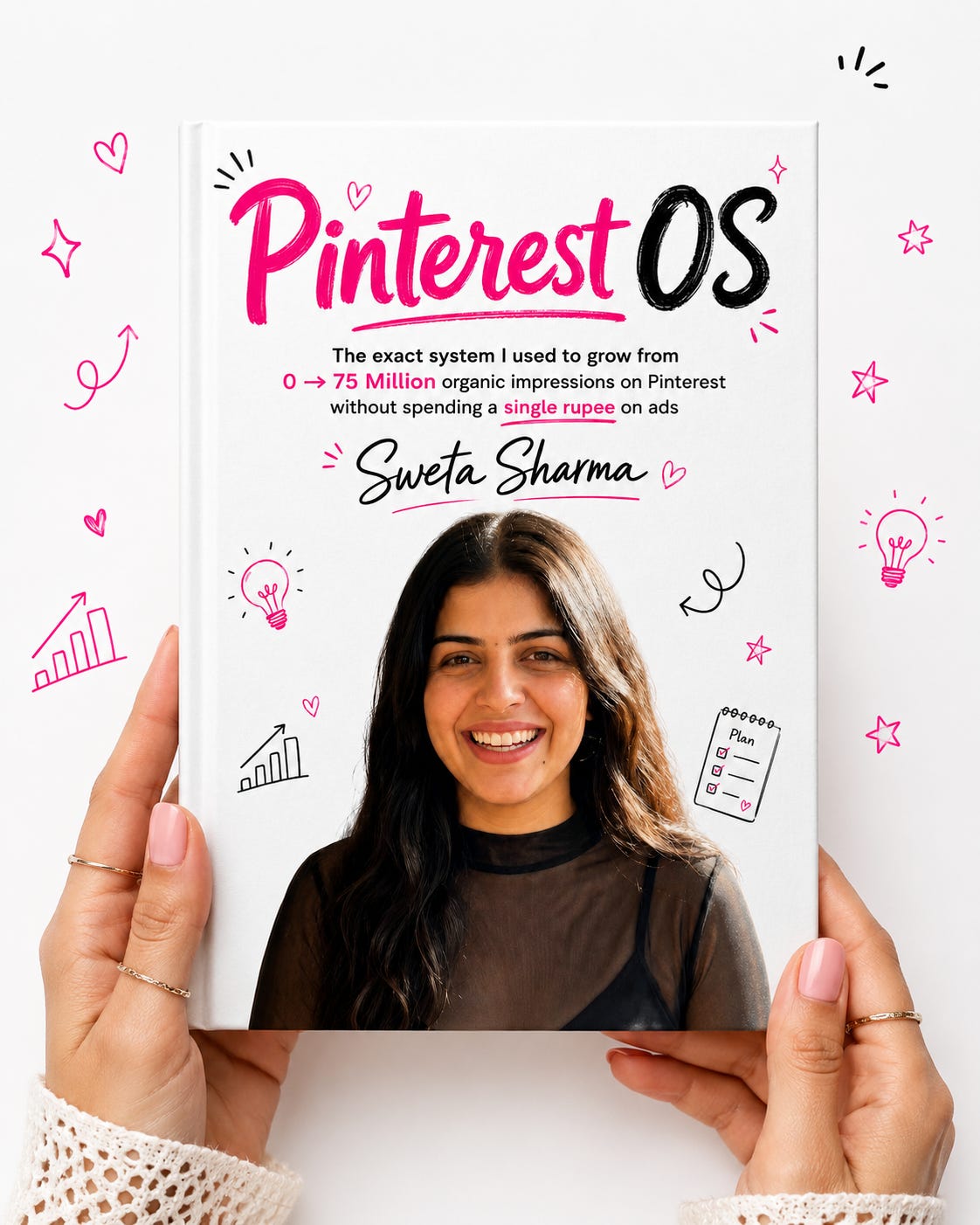
Get access to Pinterest OS: Pinterest is the fastest-growing social platform, and if you’re not using it, you’re missing out on more than 600 million active users. I went from 0 to 75 million impressions without spending a penny on ads. This is the exact system behind that growth.
3. Want to catch me outside Substack? I’m usually hanging out on LinkedIn, Pinterest & Medium. Come say hi👋
About the Author:
Hey! I’m Sweta, the brain behind Breakout Insights. I left my corporate job after facing burnout & toxicity in 2023, and now I’m on my way to building something of my own while helping fellow humans. Here, I share what I’m learning and exploring on my journey as a creator and a human. If that resonates with you, feel free to join the clan:)